What is the best way to add
online booking to a practice website?
Four setups, compared by what each one asks of your front desk, with a pick-for-you matrix for five kinds of practice.
The short answer
Four ways, one test
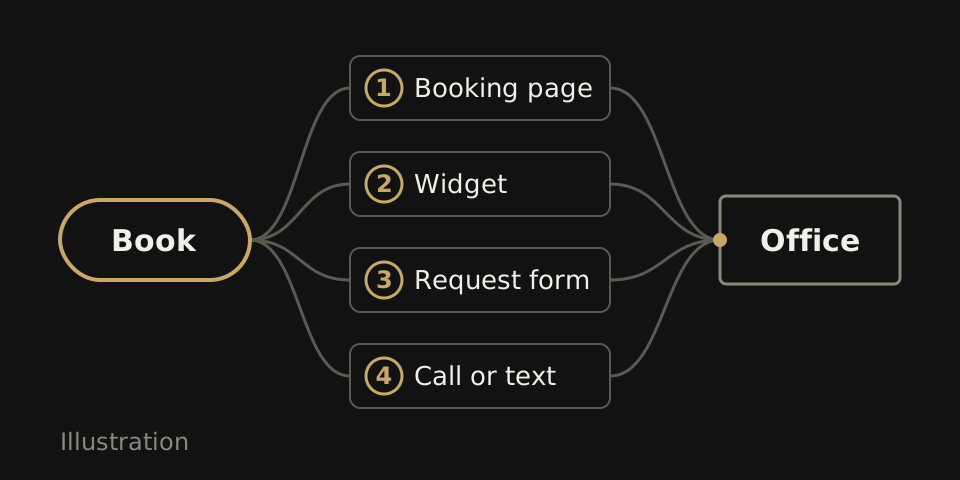
The best way to add online booking to a practice website is the setup your front desk will keep current, so a patient who taps Book gets a real time or a clear callback promise. You have four choices: link to your scheduling software's booking page, embed a booking widget, use a request form the office answers, or show a call or text button.
Each one puts the work in a different place. A booking page link puts it in your software settings. A widget puts it in keeping the live schedule honest. A form puts it in answering every request by morning. A call button puts it on whoever picks up the phone. Pick the one that fits who sits at your desk.
Before you choose, run a two minute check. On your phone, tap Book on your own site, try to reserve a slot for tomorrow, then ask the desk where that booking landed. If nobody can find it within a minute, the setup is the problem, not the patient. WTM Studio wires whichever of the four your team will run, and how it connects to your scheduling system is agreed in scope, office by office.
Option 1: Send patients to a booking page
How it works
Your Book button opens a page hosted by your scheduling software. The patient picks a time there, on a page you mostly do not design, and gets the confirmation from that system.
Good when
Your software already offers a booking page and your team already keeps its hours right. It is the fastest to set up and the easiest to change, since the website only holds a link.
Breaks when
The page looks nothing like your site, and patients wonder if they tapped the wrong thing. Groups feel it most: one shared link drops a patient into a list of offices to sort out alone. Tracking usually stops at the click, so you see taps, not visits.
Option 2: Put the schedule on your own page
How it works
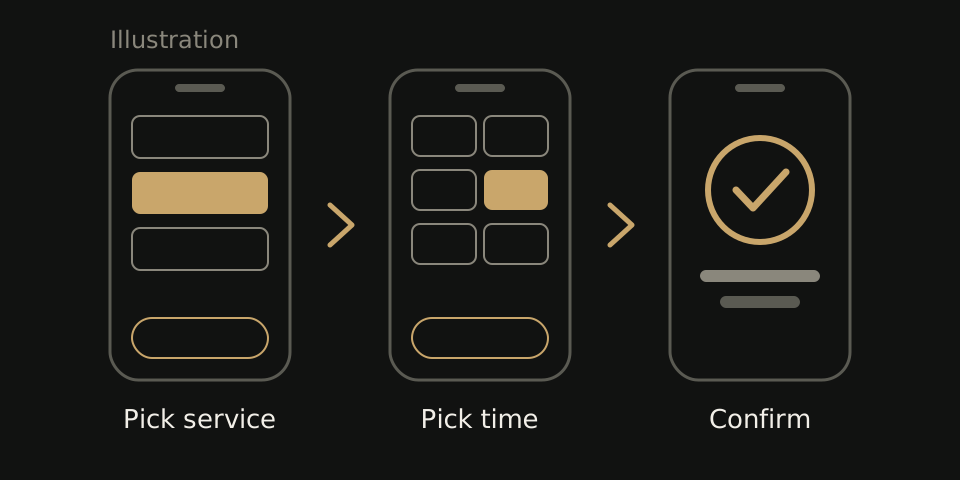
A booking widget sits inside your page. The patient picks a service and a time without leaving your site, and the open slots come from your live schedule.
Good when
You run many chairs or providers, your appointment types are clear, and someone owns the schedule in the software every day. It also suits a med spa where members rebook the same treatment and do not need a conversation first.
Breaks when
The widget loads slowly on a phone, scrolls inside the page, or hides its submit button under the keyboard. The worst case: the front desk writes phone bookings in a second calendar the widget cannot see, and two patients get the same 9 am. Our dental booking guide lists what to test.
Option 3: Take a request and call back
How it works
The patient picks a reason and a few times that suit them, then submits. Nothing is reserved. Someone at the office calls or texts back to set the time.
Good when
Visits need a human check first, such as a new patient exam, an insurance question or a consult. A solo office with one steady front desk person can answer every request by 9 am.
Breaks when
Requests land in an inbox no one opens, or the page says booked when it means asked. A patient who sent it overnight books somewhere else by lunch if nobody calls. Say plainly on the form that this is a request, and when you will reply.
Option 4: Skip the scheduler and ring the desk
How it works
The Book button dials the office or opens a text message. There is nothing to connect.
Good when
Your phone is answered every hour you are open, and walk-ins are normal, as at many urgent care clinics. It also fits one group office that still books by phone.
Breaks when
It is 10 pm. The call goes to voicemail, the text sits until morning, and the patient goes back to the search results. If you pick this, show your hours next to the button.
Which option fits your kind of practice
Find your practice type in the top row and read down.
| Option | Solo dentist | Busy multi-chair | Med spa with memberships | Urgent care | Group |
|---|---|---|---|---|---|
| Booking page link | Fits | Okay | Okay | Okay | Okay |
| Embedded widget | Okay | Fits | Fits | Okay | Fits |
| Request form | Fits | Avoid | Okay | Avoid | Avoid |
| Call or text only | Okay | Avoid | Avoid | Fits | Avoid |
A busy multi-chair office should avoid forms because callbacks pile up faster than one person can return them. In a group, one office that books by phone can still have a button that calls it. More by practice type: dental websites, med spa websites and urgent care websites.
One group's result, and three questions for any tool
A 9-location dental group
For a dental group with 9 locations, we built a new website with online booking through our Patient Growth System. The group reported 18+ new patients in month one, and in month two new patients ran 17% above its usual monthly growth. These group-reported counts do not prove the website alone caused the change, and they do not predict your results. See how we plan DSO websites.
Ask these before you sign
- What happens when slots are full? A blank calendar is a dead end. Ask what the patient sees instead: a request option, a call button or the next open day.
- Who sees the data? Name every person and company that can read a booking: your staff, the tool's vendor, anyone running your analytics. Keep patient details out of analytics and screenshots.
- Can patients cancel? Ask how a patient cancels or moves a visit, if that frees the slot in your real schedule, and who on your team gets told.
Get every answer in writing, from any vendor, including us. Then line up quotes with our website quote comparison and our pricing and terms.
If you want help with the website side
WTM Studio builds custom practice sites from Miramar, Florida, for offices nationwide, and founder Ray Hussain leads every project. We start with a free homepage concept, then one flat quote, and you own what we build. After the design direction is approved, sites launch in 2 to 4 weeks.